
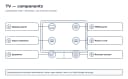
Quick answer: When a TV has sound but no picture, confirm the screen is not turned off, open the TV menu, and test a built-in app plus a known-good HDMI source. If menus never appear but sound continues, stop at external checks: a backlight, panel, or internal video fault needs qualified service.
Before you start
| Item | What to know |
|---|---|
| Tools | Remote, flashlight for room navigation only, known-good HDMI cable and source, phone camera for recording symptoms |
| Time | 20–45 minutes |
| Difficulty | Moderate |
| Safety boundary | Do not remove the rear cover or perform the online flashlight-through-the-screen test as proof of a repair. Internal backlight and power circuits can expose hazardous voltage. |
Key takeaway: Tools: what to know — Remote, flashlight for room navigation only, known-good HDMI cable and source, phone camera for recording symptoms.
Record the exact model number, current input, indicator-light behavior, and whether the symptom affects the TV's own home screen. Take phone photos of settings before changing them. Work with dry hands in a dry area, provide stable footing, and ask for help before moving a large screen.
Stop-use warning: Stop for a burning smell, smoke, unusual heat, arcing, repeated breaker trips, or water near electricity. Do not keep resetting a breaker or step into water to reach a plug. There is no live mains testing, gas valve work, sealed refrigeration work, internal TV capacitor repair, or safety bypass in this guide.
Manufacturer verification note: Menus, reset steps, port capabilities, indicator patterns, and update methods vary by exact model and software. Confirm model-specific instructions in the owner's manual or on the manufacturer's official support site. Do not use hidden service menus.
Causes ranked by likelihood
The order below starts with conditions that are common and safe to isolate. It is not a diagnosis probability for every model. Physical damage or an electrical warning sign always takes priority over the ranking.
| Cause | How to check | Fix | Difficulty |
|---|---|---|---|
| Picture-off or screen-off mode | Press Home or Menu and review accessibility or energy controls | Disable the feature with the documented menu or remote shortcut | Easy |
| Wrong input or inactive source | Check the input label and whether the TV menu is visible | Select the active input or restart the source | Easy |
| HDMI handshake or cable fault | Try a short known-good cable and another compatible port | Power-cycle source and TV, then reconnect directly | Easy |
| App or software freeze | Compare one built-in app, live TV or menu, and another source | Close or reinstall the app; restart and update the TV | Moderate |
| Backlight system failure on LCD | Menus and all sources remain dark; sound and remote response continue | No external repair; request professional diagnosis | Hard |
| Panel or internal video-path fault | The TV's own menus never appear, or the screen has damage or colored blotches | Stop use if damaged; obtain a service or replacement estimate | Hard |
Key takeaway: Picture-off or screen-off mode: how to check — Press Home or Menu and review accessibility or energy controls.
1. Picture-off or screen-off mode
Why it happens
Audio-only and accessibility features can intentionally darken the panel while sound continues. A child, voice command, shortcut, or energy option may have activated it. Listen for menu navigation feedback and use the manual's exact path rather than pressing random remote combinations.
How to check and fix it safely
Open Home or Settings and wait several seconds because a slow TV may not draw the menu immediately. Try the physical control if the remote is uncertain. If a menu becomes visible, return only the screen-off setting to normal and leave unrelated accessibility choices alone. Photograph the original state. A full reset is excessive for one known option and erases useful evidence.
After the test, return any unrelated setting to its original value. If the symptom does not change, move to the next cause rather than repeating the same power cycle. A negative result is useful because it narrows the path without exposing internal components.
2. Wrong input or inactive source
Why it happens
A receiver, console, cable box, or streaming stick may be asleep while the television remains tuned to its port. Some sets continue audio from another path or app, which makes the symptom confusing. The input banner and an on-screen menu distinguish a source problem from a panel problem.
How to check and fix it safely
Disconnect extra devices with power off. Start a built-in TV app; then connect one known-good source directly to one HDMI port. Confirm that source works on another display if available. Avoid changing resolution and cable simultaneously. If the built-in app shows normally, the TV's basic display path works and attention belongs on the external chain.
After the test, return any unrelated setting to its original value. If the symptom does not change, move to the next cause rather than repeating the same power cycle. A negative result is useful because it narrows the path without exposing internal components.
3. HDMI handshake or cable fault
Why it happens
HDCP copy protection, resolution negotiation, and color-format negotiation occur when devices connect. A receiver, switch, wall plate, or marginal cable adds another negotiation point. Audio can survive while video fails because the required data rates and formats differ.
How to check and fix it safely
Turn both devices off and unplug them. Remove switches and receivers for the test. Reconnect a certified cable directly, power the TV first, select its input, and then power the source. If basic video returns, enable enhanced HDMI or high-frame-rate modes only when both devices and that specific port support them. Replace a cable only after a controlled cross-test.
After the test, return any unrelated setting to its original value. If the symptom does not change, move to the next cause rather than repeating the same power cycle. A negative result is useful because it narrows the path without exposing internal components.
4. App or software freeze
Why it happens
A black player window with visible menus points to an app, account, ad insertion, DRM, or service problem rather than failed lighting. A temporary operating-system lock can also leave audio running after the video layer stops refreshing.
How to check and fix it safely
Exit fully to the home screen and open different known content. Check the service on another device. Restart through the documented menu, then unplug for 60 seconds if necessary. Install only official updates with stable power. Clear the app cache or reinstall if supported. Save factory reset for a failure that affects multiple apps and inputs.
After the test, return any unrelated setting to its original value. If the symptom does not change, move to the next cause rather than repeating the same power cycle. A negative result is useful because it narrows the path without exposing internal components.
5. Backlight system failure on LCD
Why it happens
An LCD panel needs illumination behind its pixel layer. Failed LED strips, a driver fault, or a power problem can remove that light while processing and audio continue. Uneven dim areas before the failure can be a clue, but symptoms alone cannot identify which internal part failed.
How to check and fix it safely
Do not open the set, inject voltage into LED strips, or bypass protection. Record whether the screen briefly flashes at startup and whether the standby light changes normally. Provide the model and observations to a qualified service provider. Ask whether the quote covers the complete backlight set and labor, because partial strip replacement can age unevenly.
After the test, return any unrelated setting to its original value. If the symptom does not change, move to the next cause rather than repeating the same power cycle. A negative result is useful because it narrows the path without exposing internal components.
6. Panel or internal video-path fault
Why it happens
A panel timing, internal connector, main-board video, or panel-driver fault can produce a uniformly black display. Impact damage may leave cracks, radiating lines, or dark liquid-like areas. These conditions are not fixed by picture settings.
How to check and fix it safely
Do not press, flex, heat, tape, or massage the panel. Do not reseat internal ribbon cables. If glass is cracked, keep people away from sharp edges and stabilize the set without touching fragments. Compare a professional estimate with replacement cost; model-specific panel assemblies are often the most expensive component.
After the test, return any unrelated setting to its original value. If the symptom does not change, move to the next cause rather than repeating the same power cycle. A negative result is useful because it narrows the path without exposing internal components.
Brand-specific notes
Samsung may call the intentional feature Picture Off; LG menus may include Screen Off; Sony models may provide Picture Off under quick settings or power-saving controls. Roku TV and Fire TV models organize restarts and inputs by platform. Names change by year. Samsung, LG, Sony, TCL, Hisense, Vizio, Roku, and Amazon support pages should be searched with the complete model. Do not use hidden service-menu sequences.
Useful official starting points include Samsung Support, LG Support, Sony Support, TCL Support, Hisense Support, Roku Support, Amazon device help, and Vizio Support. Use the full model suffix because similar retail variants can use different panels, boards, menus, or firmware.
Codes vary by model, so confirm in your owner's manual or the manufacturer's support site. A blinking light or message is evidence to record, not permission to open the enclosure. Never install firmware intended for a merely similar model.
When to call a professional
Call for service when the built-in menu is absent on every input after a safe restart, when the image flashes and vanishes, or when physical damage is visible. Stop immediately for burning odor, smoke, repeated breaker trips, unusual heat, or water near electricity. A professional can isolate lighting, power, processor, and panel faults with the enclosure safely controlled; this guide makes no claim that a specific internal part has failed.
Ask for a written estimate that separates diagnostic fee, parts, labor, taxes, transport, and warranty. Costs are approximate US estimates, not sourced price quotes; region, screen size, parts availability, and model design create large differences. Check the original warranty, retailer coverage, payment-card benefits, and CPSC recalls before approving paid work.
The safety boundary is firm: TV power boards and capacitors may remain hazardous after unplugging. There is no safe reason for a consumer to defeat a fuse, interlock, ground, thermal protection, or panel protection. NFPA electrical-safety resources support keeping unqualified people away from exposed energized work. Internal diagnosis belongs to appropriately qualified service.
Prevention tips
- Provide the ventilation clearance in the manual and remove dust around, not inside, vents.
- Use a listed surge protective device where appropriate; no protector guarantees survival of every surge.
- Connect or disconnect HDMI equipment while devices are off when practical.
- Avoid maximum backlight in a dark room when a lower comfortable setting works.
- Secure the set against impacts and tipping, especially around children and pets.
Also dust only the exterior and accessible vents with the TV off and cool. Do not spray liquid on the screen or into openings. Follow the manufacturer's ventilation distances, mounting limits, and cleaning instructions. Registering the product and retaining a private copy of the receipt makes future warranty and recall checks easier.
Frequently asked questions
The article's structured FAQ panel provides concise answers to the most searched questions about this problem. It is rendered from frontmatter and is not duplicated in the body.
Back to the TV Guide and related help
- Return to the complete TV Guide.
- Continue with TV Won't Turn On? Safe Power Checks to Try.
- Also see TV Screen Lines: Diagnose Vertical or Horizontal Lines.
- Read electronics safety basics before troubleshooting other devices.
These links keep the next test focused. If evidence points away from this symptom, switch to the matching guide rather than stacking unrelated resets or purchases.