
Repair Guide organizes practical help for graphics cards, processors, motherboards, memory, storage drives, and power supplies. These products differ, but good troubleshooting follows the same discipline: describe the symptom precisely, begin with reversible checks, and stop before a test introduces more risk than value. This category overview helps you choose the right guide and build a safe plan rather than swapping parts at random.
Start with the symptom, not a suspected part
A useful diagnosis says what the product does, when it happens, and what changed. “It fails” is vague; “it powers on, loses its connection after ten minutes, and works again after cooling” gives you timing and heat clues. Note indicator lights, messages, sounds, smells, and whether the issue affects every input or only one source. Photograph connections before moving them.
The main checks in this category involve compatibility, ESD control, firm seating, cooling, firmware, power capacity, and backups. Start with the wall outlet or known power source, controls, removable cables, consumables, and visible obstructions. Change one variable at a time, then test under the same conditions. This makes the result meaningful and leaves an easy path back.
Top problems at a glance
| Symptom | Common possibilities | Sensible first check | Detailed help |
|---|---|---|---|
| GPU is not detected | Power lead, slot seating, firmware, or driver | Power off and verify connections | Open guide |
| CPU overheats | Cooler contact, fan, airflow, or workload | Stop stress tests and inspect cooler operation | Open guide |
| RAM is missing | Module seating, slot, settings, or compatibility | Reseat one module at a time | Open guide |
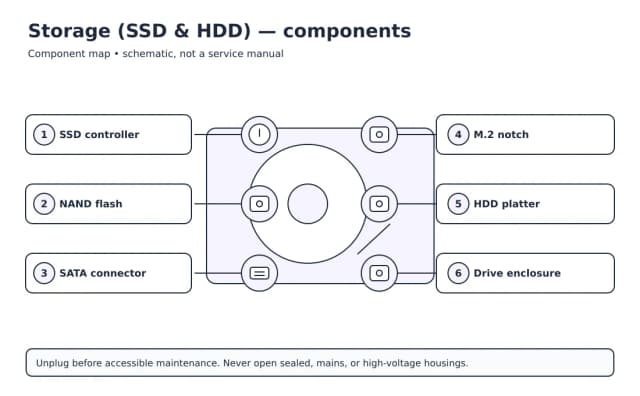
| Drive clicks | Mechanical drive failure | Stop use and protect recoverable data | Open guide |
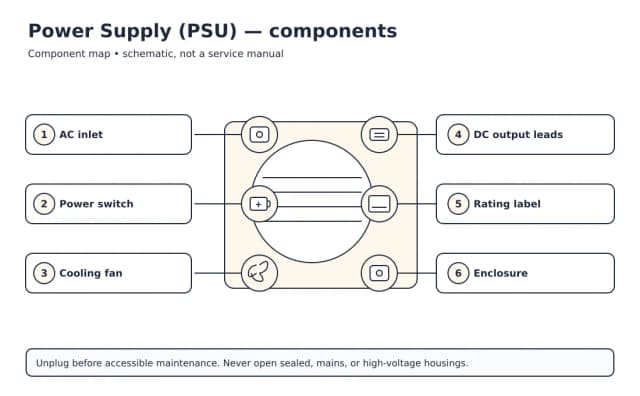
| PC loses power | PSU protection, heat, short, or overload | Disconnect new hardware and seek testing | Open guide |
Key takeaway: GPU is not detected: common possibilities — Power lead, slot seating, firmware, or driver.
The likely cause depends on the exact model and conditions. A symptom table is a triage tool, not a parts diagnosis. If a basic check does not isolate the problem, look for the service information the manufacturer provides for consumers or ask a qualified technician.
A safe troubleshooting sequence
- Make the situation safe. Stop using equipment that is wet, deformed, smoking, sparking, unusually hot, or repeatedly tripping protection.
- Preserve what matters. Back up accessible data and record settings, account ownership, error text, and the exact model number.
- Check the environment. Confirm case airflow, component temperatures, and the power and cooling requirements in the system manual.
- Inspect external connections. Look for looseness, contamination, pin damage, strain, and incompatible adapters without opening sealed enclosures.
- Restart normally. Use the documented shutdown method; let an overheated system cool and address blocked airflow before retesting.
- Test one substitute. When safe, use one known-compatible cable, outlet, source, or accessory. Do not improvise power specifications.
- Check updates and settings. Record the current version first. Avoid firmware updates while power is unstable.
- Consult model documentation. Error codes and reset steps vary. Use the full model identifier, not just a product family name.
Use ESD precautions and remove power before reseating parts. Never open a power supply. Back up important data before firmware, partition, or drive-health work.
Choose the right guide
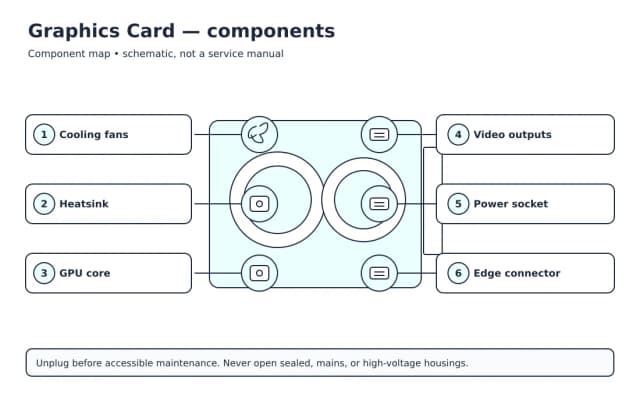
- Graphics Card Guide — symptoms, maintenance, and decision points for this device.
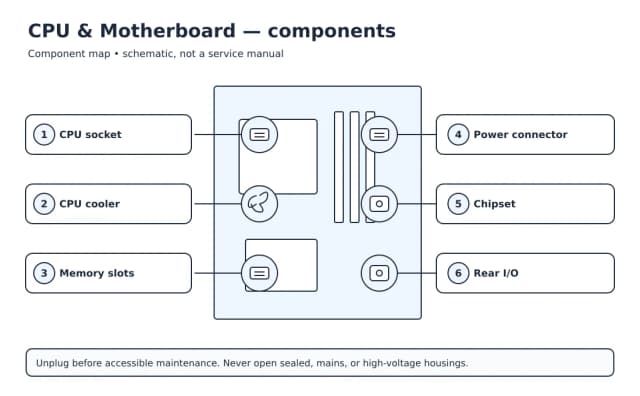
- CPU & Motherboard Guide — symptoms, maintenance, and decision points for this device.
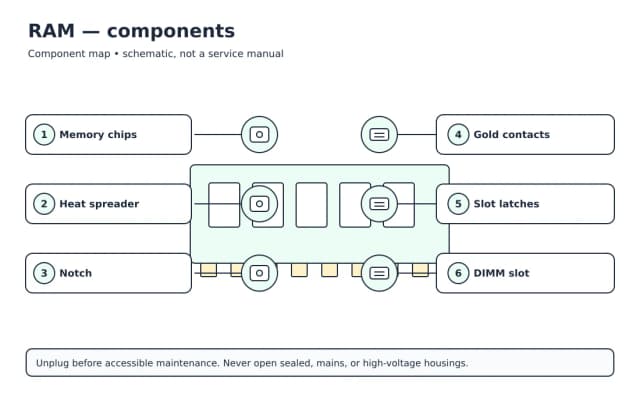
- RAM Guide — symptoms, maintenance, and decision points for this device.
- Storage (SSD & HDD) Guide — symptoms, maintenance, and decision points for this device.
- Power Supply (PSU) Guide — symptoms, maintenance, and decision points for this device.
Each guide narrows the checks to the product. Follow a symptom-specific page when one matches exactly. Comparison pages explain standards and purchase decisions; repair pages focus on diagnosis. For general preparation, read electronics safety basics, how to read a model number, and repair versus replace.
Maintenance that prevents confusing faults
Maintenance should be gentle and documented. Keep air paths open, use dry or manufacturer-approved cleaning methods, avoid sharp tools in ports, and replace consumables at the stated interval. Install security and reliability updates from official sources. Check power cords and frequently moved cables for strain. For battery products, avoid prolonged high heat and follow storage-charge guidance in the manual.
Keep a small record of purchase date, model and serial number, warranty coverage, important settings, and maintenance. Store receipts separately from the device. A dated symptom note can reveal whether a fault follows an update, move, storm, spill, or accessory change.
Repair, replace, or ask for help?
Compare the product's age, condition, warranty, data value, energy use, part availability, and total repair cost. A low-cost external cable is different from an uncertain internal power fault. Replacement may make sense when safety damage is extensive or several major systems are failing. Repair may make sense when the cause is well isolated, parts and documentation are available, and the product still meets your needs.
Use qualified service for internal PSU faults, damaged mains wiring, soldered board repairs, or energized measurements. If storage data is at risk, avoid writing to the drive and consult a recovery specialist.
Build a repeatable habit
Good troubleshooting is less about a clever trick than a controlled process. Use exact observations, favor reversible tests, verify compatibility before connecting power, and make backups routine. If a change does not help, undo it before trying the next one. Those habits reduce accidental damage and make model-specific instructions far easier to follow.
Sources and further reading
- U.S. Consumer Product Safety Commission recalls
- ENERGY STAR product guidance
- EPA electronics donation and recycling
- FTC warranties and service contracts
Guide routes within PC Components
| Guide | Start with these focused topics | Topics |
|---|---|---|
| Graphics Card Guide | GPU Not Detected? Safe Checks That Find the Cause; GPU Overheating: Temperatures, Airflow, and Fixes | 5 linked topics |
| CPU & Motherboard Guide | CPU Overheating: Find the Cooling Problem; Motherboard No POST: A Minimal-Boot Checklist | 3 linked topics |
| RAM Guide | RAM Not Detected: Slot and Module Checks; RAM Speed Explained Without the Marketing Fog | 3 linked topics |
| Storage (SSD & HDD) Guide | SSD Not Detected: BIOS and OS Checks; Hard Drive Clicking: Protect Your Data First | 4 linked topics |
| Power Supply (PSU) Guide | PSU Failure Signs and Safe Next Steps; PSU Wattage Calculator Guide: Size It Correctly | 2 linked topics |
Key takeaway: Graphics Card Guide: topics — 5 linked topics.
Key takeaway: Choose the pc components guide for the exact device before following a symptom page.
Useful observations for pc components support
| Device group | Record before seeking help |
|---|---|
| GPU and display path | Distinguish a missing display signal from a card not detected by the system. |
| Memory and storage | Preserve data and record firmware detection before changing hardware. |
| Power and cooling | Stop use for electrical odor or recurring thermal shutdown; never open a PSU. |
Key takeaway: GPU and display path: record before seeking help — Distinguish a missing display signal from a card not detected by the system.
Key takeaway: A precise pc components symptom and model number are more useful than a guessed replacement part.