
Quick answer: When a smart TV will not connect to Wi-Fi, compare another device in the same location, restart the TV and router, forget and rejoin the network, and verify the password, date, and signal. Test Ethernet or a phone hotspot briefly to separate the TV, home Wi-Fi, internet service, and streaming provider.
Before you start
| Item | What to know |
|---|---|
| Tools | Router access, Wi-Fi password, phone or laptop for comparison, Ethernet cable if supported |
| Time | 20–60 minutes |
| Difficulty | Moderate |
| Safety boundary | Do not climb or run cables where they create a fall hazard. Use only the router power supply specified by its manufacturer. No live mains testing or improvised power adapters. |
Key takeaway: Tools: what to know — Router access, Wi-Fi password, phone or laptop for comparison, Ethernet cable if supported.
Record the exact model number, current input, indicator-light behavior, and whether the symptom affects the TV's own home screen. Take phone photos of settings before changing them. Work with dry hands in a dry area, provide stable footing, and ask for help before moving a large screen.
Stop-use warning: Stop for a burning smell, smoke, unusual heat, arcing, repeated breaker trips, or water near electricity. Do not keep resetting a breaker or step into water to reach a plug. There is no live mains testing, gas valve work, sealed refrigeration work, internal TV capacitor repair, or safety bypass in this guide.
Manufacturer verification note: Menus, reset steps, port capabilities, indicator patterns, and update methods vary by exact model and software. Confirm model-specific instructions in the owner's manual or on the manufacturer's official support site. Do not use hidden service menus.
Causes ranked by likelihood
The order below starts with conditions that are common and safe to isolate. It is not a diagnosis probability for every model. Physical damage or an electrical warning sign always takes priority over the ranking.
| Cause | How to check | Fix | Difficulty |
|---|---|---|---|
| Wrong credentials, date, or captive portal | Re-enter password and check automatic date and time | Forget network, correct settings, and join normally | Easy |
| Weak signal or interference | Compare signal and speed with a phone beside the TV | Move router, reduce obstacles, or add a planned access point | Easy |
| Band or router compatibility | Test 2.4 GHz and 5 GHz networks separately if available | Use a supported band and compatible security mode | Moderate |
| Router, DHCP, or DNS state | Check whether TV gets an IP address and whether other devices have internet | Restart router; return TV network settings to automatic | Moderate |
| TV software or app problem | Compare several apps and check for official updates | Restart, update, clear app data, or reset network settings | Moderate |
| Hardware or environmental limitation | Test Ethernet and a brief phone hotspot near the TV | Use wired connection or request service after isolation | Hard |
Key takeaway: Wrong credentials, date, or captive portal: how to check — Re-enter password and check automatic date and time.
1. Wrong credentials, date, or captive portal
Why it happens
Passwords are case-sensitive, and an old stored credential can survive a router change. Incorrect clock data can also prevent secure app connections. Hotel, dorm, and public networks may require a browser sign-in a TV cannot complete.
How to check and fix it safely
Forget the network on the TV, restart, and type the password carefully. Avoid displaying it around others. Set date, time, and region automatically where supported. On managed or captive-portal networks, ask the network administrator for an approved method; do not clone addresses or bypass access controls. A successful Wi-Fi icon without app access may indicate authentication beyond the local link.
After the test, return any unrelated setting to its original value. If the symptom does not change, move to the next cause rather than repeating the same power cycle. A negative result is useful because it narrows the path without exposing internal components.
2. Weak signal or interference
Why it happens
TV antennas sit behind a large panel near walls, metal mounts, cabinets, and other electronics. Microwave ovens, neighboring networks, and Bluetooth share parts of the 2.4 GHz band. Signal bars are rough indicators, not throughput measurements.
How to check and fix it safely
Place the router high and open rather than inside a cabinet or behind a television. Rotate or relocate it modestly and retest. Keep it away from large metal objects and interference sources. Do not buy a repeater before measuring; a poorly located repeater repeats a weak signal. A wired access point or properly placed mesh node can be more reliable.
After the test, return any unrelated setting to its original value. If the symptom does not change, move to the next cause rather than repeating the same power cycle. A negative result is useful because it narrows the path without exposing internal components.
3. Band or router compatibility
Why it happens
Some TVs support only certain bands, channel widths, or security combinations. Band steering can move clients between radios. 5 GHz usually offers capacity but shorter reach; 2.4 GHz travels farther but faces more congestion.
How to check and fix it safely
Temporarily give bands distinct names if the router permits and document the original configuration. Join each supported band. Use modern security recommended by both vendors; a transition mode may be needed for an older TV, but avoid weakening the entire network without understanding the tradeoff. Do not select illegal regional channels or change advanced radio power blindly.
After the test, return any unrelated setting to its original value. If the symptom does not change, move to the next cause rather than repeating the same power cycle. A negative result is useful because it narrows the path without exposing internal components.
4. Router, DHCP, or DNS state
Why it happens
The router assigns local addresses through DHCP and forwards name lookups through DNS. A stale lease or exhausted address pool can leave the TV connected to radio but unable to reach services.
How to check and fix it safely
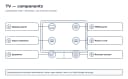
Restart the router using its app or power method and allow several minutes for internet service to return. Leave IP and DNS automatic first. Check the TV network-status diagram for the break between TV, router, and internet. A public DNS may be a useful controlled test, but it does not improve weak radio signal and can affect content localization. Record changes so they can be reversed.
After the test, return any unrelated setting to its original value. If the symptom does not change, move to the next cause rather than repeating the same power cycle. A negative result is useful because it narrows the path without exposing internal components.
5. TV software or app problem
Why it happens
A Wi-Fi driver, certificate store, or one app can fail even when the home network is healthy. Low storage may affect smart-platform updates. Service outages can imitate a household fault.
How to check and fix it safely
Check provider status on another device. Restart the TV from its system menu, update official firmware, and update the failing app. Clear cache or reinstall where supported. Reset only network settings before considering a complete factory reset. Stable power is important during firmware installation. Never load software from an unofficial forum or a similar model.
After the test, return any unrelated setting to its original value. If the symptom does not change, move to the next cause rather than repeating the same power cycle. A negative result is useful because it narrows the path without exposing internal components.
6. Hardware or environmental limitation
Why it happens
If Ethernet works while multiple known-good Wi-Fi networks fail at close range, the TV's wireless hardware or software may be at fault. If both Ethernet and Wi-Fi fail while other devices work, broader TV network circuitry or configuration is possible.
How to check and fix it safely
Use a hotspot only briefly and watch mobile-data usage; streaming consumes substantial data. If the TV joins the hotspot, investigate the home router's compatibility. If it joins neither network beside the access point, collect model, software version, and test results for support. An external supported streaming player can be a practical alternative to internal repair on an older TV.
After the test, return any unrelated setting to its original value. If the symptom does not change, move to the next cause rather than repeating the same power cycle. A negative result is useful because it narrows the path without exposing internal components.
Brand-specific notes
Samsung Connection Guide, LG Network settings, Sony Network and Internet, Roku TV Network, and Fire TV Network menus expose different tests. TCL and Hisense behavior depends on whether the set uses Roku TV, Google TV, Fire TV, or a proprietary platform. Search official support by full model and operating system. Router changes can affect every household device, so save its configuration first.
Useful official starting points include Samsung Support, LG Support, Sony Support, TCL Support, Hisense Support, Roku Support, Amazon device help, and Vizio Support. Use the full model suffix because similar retail variants can use different panels, boards, menus, or firmware.
Codes vary by model, so confirm in your owner's manual or the manufacturer's support site. A blinking light or message is evidence to record, not permission to open the enclosure. Never install firmware intended for a merely similar model.
When to call a professional
Contact the internet provider when the modem or router has no service across devices. Contact the router maker when only a specific security or band configuration fails. Contact TV support when the set cannot join a nearby known-good network after an official network reset and update. Stop use if any power adapter smells burned, overheats, has exposed wire, meets water, or trips a breaker.
Ask for a written estimate that separates diagnostic fee, parts, labor, taxes, transport, and warranty. Costs are approximate US estimates, not sourced price quotes; region, screen size, parts availability, and model design create large differences. Check the original warranty, retailer coverage, payment-card benefits, and CPSC recalls before approving paid work.
The safety boundary is firm: TV power boards and capacitors may remain hazardous after unplugging. There is no safe reason for a consumer to defeat a fuse, interlock, ground, thermal protection, or panel protection. NFPA electrical-safety resources support keeping unqualified people away from exposed energized work. Internal diagnosis belongs to appropriately qualified service.
Prevention tips
- Place network equipment in open, central locations with ventilation.
- Use strong unique Wi-Fi and administrator passwords and supported security.
- Keep router and TV firmware updated from official sources.
- Prefer Ethernet for fixed high-bitrate viewing when cable routing is safe.
- Document network names, band choices, reservations, and DNS changes.
Also dust only the exterior and accessible vents with the TV off and cool. Do not spray liquid on the screen or into openings. Follow the manufacturer's ventilation distances, mounting limits, and cleaning instructions. Registering the product and retaining a private copy of the receipt makes future warranty and recall checks easier.
Frequently asked questions
The article's structured FAQ panel provides concise answers to the most searched questions about this problem. It is rendered from frontmatter and is not duplicated in the body.
Back to the TV Guide and related help
- Return to the complete TV Guide.
- Continue with TV No Sound? Restore Audio Step by Step.
- Also see TV Picture Settings: A Practical Setup Guide.
- Read electronics safety basics before troubleshooting other devices.
These links keep the next test focused. If evidence points away from this symptom, switch to the matching guide rather than stacking unrelated resets or purchases.