
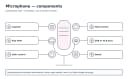
Quick answer: Move the microphone closer to the voice and reduce excessive gain, then compare recordings under the same conditions. Check a compatible cable or input only if the noise persists; do not open powered audio equipment.
Before you start
- Tools: the product manual, good lighting, a soft dry cloth, and one known-good compatible cable or accessory if relevant
- Time: 15–45 minutes for external checks
- Difficulty: Easy
- Safety: Mute or lower gain before connecting. Use phantom power only with equipment designed for it; never connect audio gear to unknown or damaged wiring.
Back up accessible data before updates. Work on a stable, dry surface and disconnect power before moving cables or removable hardware.
Causes ranked by likelihood
| Cause | How to check | Fix | Difficulty |
|---|---|---|---|
| 1. Mic too far from the voice | Record a short clip at intended speaking position | Move mic closer with a stable stand | Easy |
| 2. Gain too high | Check input meter for clipping | Lower gain and compare the recording | Easy |
| 3. Electrical hum or ground path | Listen for steady hum across sources | Try a compatible cable; never remove mains ground | Moderate |
| 4. Fans, reflections, or wireless interference | Compare locations and background sounds | Reduce nearby noise or move approved wireless gear | Easy |
Key takeaway: 1. Mic too far from the voice: how to check — Record a short clip at intended speaking position.
1. Check mic too far from the voice
Move the microphone closer to the speaker using a stable stand, with the correct side oriented toward the voice. Compare a short recording before increasing gain.
2. Isolate gain too high
Reduce the microphone or interface input gain until speech stays below clipping on the recording meter. Keep the mic close enough for the voice to remain clear rather than compensating for distance with excessive gain.
3. Evaluate electrical hum or ground path
Listen for a steady hum and check the external audio cable with equipment turned off. Try a compatible known-good cable or input; never defeat the mains ground or open an interface to chase hum.
4. Treat fans, reflections, or wireless interference as an escalation point
Compare a short recording with nearby fans off and on, and try a less reflective position or stable mic stand. If the mic is wireless, check the maker's guidance on radio interference without altering unrelated audio hardware.
Brand-specific notes
Gain controls and monitoring options depend on the microphone and audio interface. Consult both manuals before changing input gain or phantom power.
When to call a professional
Arrange qualified service for a burning smell, smoke, arcing, liquid inside, damaged mains connector, swollen battery, repeated protection shutdown, precision alignment, soldered port, or a fault that requires energized measurements. For valuable data on a failing drive or card, stop writing to it and consult a recovery specialist.
Prevention tips
- Keep vents, optics, contacts, and connector openings clean using the maker's approved method.
- Avoid cable strain, impact, moisture, extreme temperatures, and unsupported chargers or adapters.
- Maintain backups before faults occur and record stable settings before updates.
- Inspect lithium batteries regularly; retire damaged or swollen packs without charging or reuse.
Related help
Official resources
Summary
Begin with the most likely external cause, verify the complete power or signal path, and test one known-good compatible item at a time. Model-specific documentation outranks generic reset advice. Stop before a low-risk check becomes internal powered work, battery damage, precision mechanical damage, or data loss.
Observations that narrow down microphone background noise
| What you observe | What it may indicate | Safe next step |
|---|---|---|
| Voice and room sounds are both quiet | Microphone may be too far away | Move the mic closer to the speaker and reduce gain if needed. |
| Low hum persists when room is quiet | Cable or power path may be involved | Try a known-compatible cable or input without opening equipment. |
| Fan noise dominates recording | Nearby airflow can reach the microphone | Move the mic away from fans and compare a short recording. |
Key takeaway: Voice and room sounds are both quiet: what it may indicate — Microphone may be too far away.
Key takeaway: For microphone background noise, compare the observation with one safe, reversible check before assuming a part has failed.